 COME
COMECompare COME Version Numbers and Update Labels
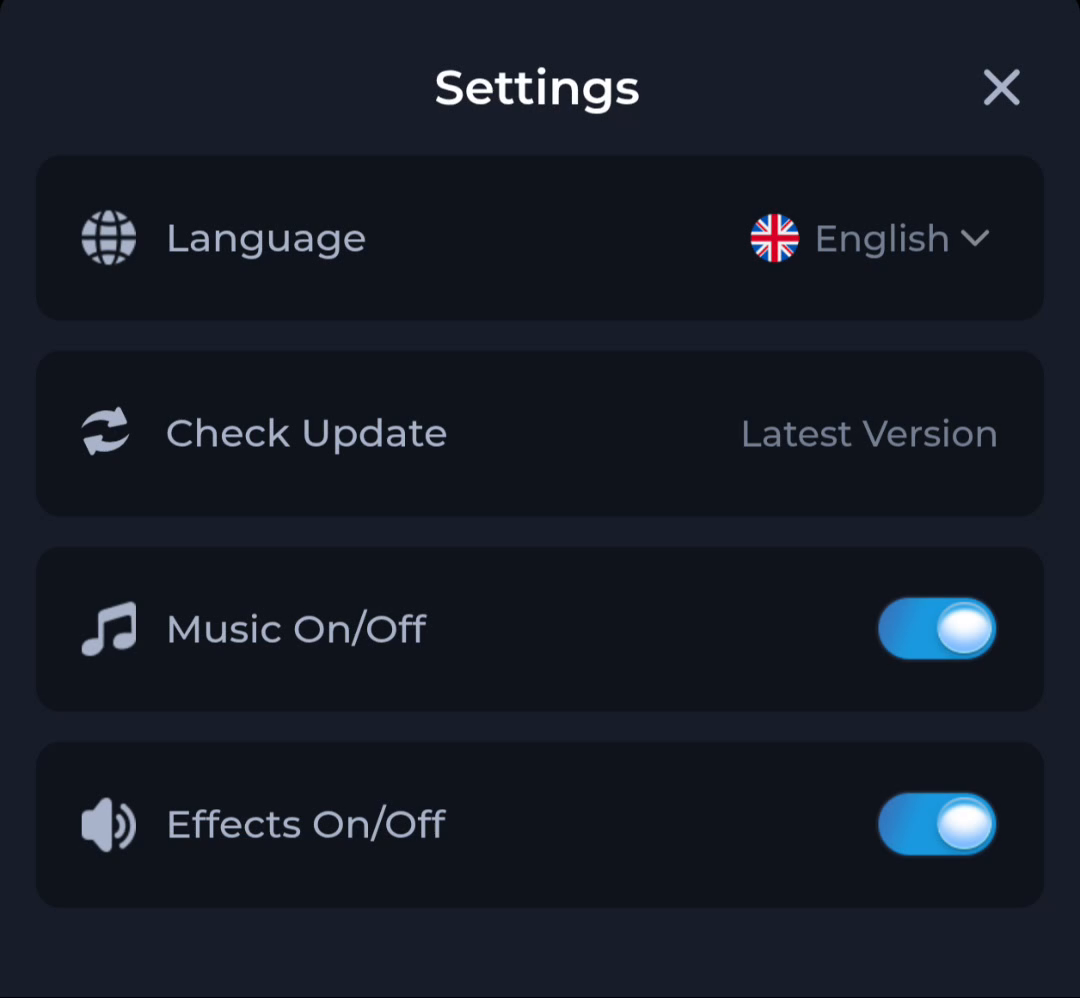
Compare a numbered installed version with a numbered release in the current offer. A Settings phrase such as “Latest Version” tells you status but does not provide a version number to compare.
Locate each value and its context
Read Android’s app information or an app version screen for the installed value when available. Then read the current download offer. Write down the value and where it appeared so an app display is not confused with an older saved filename.
Avoid using a date as a release number
An information-check date says when a listing was reviewed; it is not automatically the release date. Likewise, a browser download time tells you when that copy was saved. Compare the same type of field on both sides.
Resolve a mismatch without losing access
If the two numbers differ, review the current offer and update guidance. Do not assume a renamed or larger file is newer. Preserve the working app and your recovery method while asking the service about an unclear release difference.
A useful next step
Use the download page for the package offered through the current entry. It keeps version comparison next to the installation sequence.